What Is a KDS and How Does It Work in a Restaurant Kitchen?
Share this post
A KDS (Kitchen Display System) is a screen mounted in the kitchen that displays orders as soon as they are confirmed, rather than printing them on paper. It consolidates all orders—whether they come from the dining room, a kiosk, a QR code, the website, or delivery platforms—into a single queue, sorts them by wait time, and shows each station only what it needs to prepare.
First, where it goes and why there
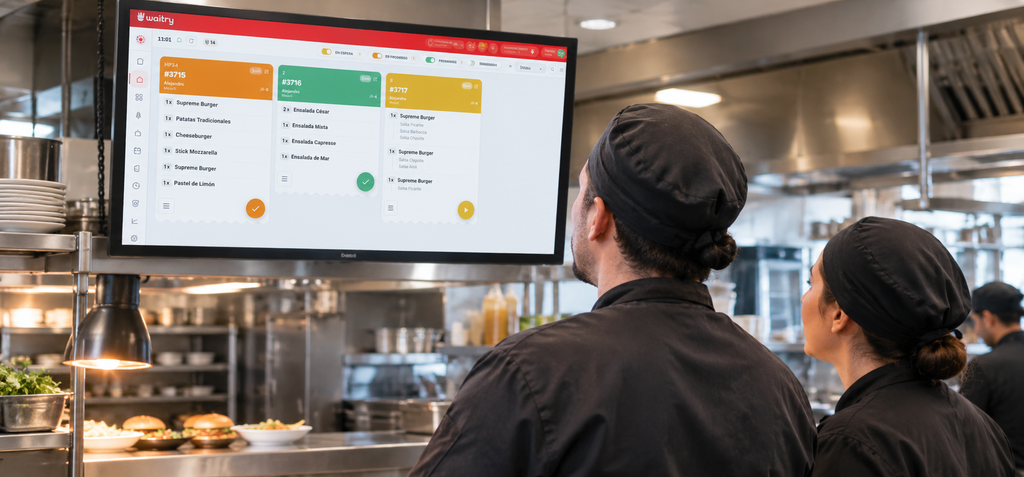
The KDS is hung in the kitchen, at the serving window.
The pass is the counter where the finished dish leaves the kitchen and enters the dining room. It’s usually made of steel and almost always has a heating element on top to keep the food warm while it waits for a few seconds; everything that’s served passes through there. It’s also where the person who coordinates the service stands and calls out the orders.
That’s why the screen goes right there, above or in front: so that whoever is setting the pace can see it without looking up, and so that the players can see it from their seats.
In large kitchens, there isn’t just one. There’s one in the service area—which is in charge—and one for each section working in parallel: griddle, cold dishes, and desserts. Each one teaches only their own section.
What do the acronyms mean, and where do they come from?
KDS stands for Kitchen Display System. In Spanish, it’s called a “panel de cocina,” “pantalla de cocina,” or simply “KDS,” which is what you’ll hear almost everywhere.
The idea originated in the fast-food industry, where the kitchen had to coordinate with the counter and the car waiting at the drive-thru window, and where a misplaced piece of paper would leave someone stuck in the middle of the lane. There, paper quickly proved insufficient.
What has propelled KDS from the burger joint to the neighborhood restaurant hasn’t been technology, but delivery. When a single location starts receiving orders via its QR code, its website, two different platforms, and the cash register, there is no longer a single order flow—there are four. And four order flows don’t fit on a single hook.
What it looks like
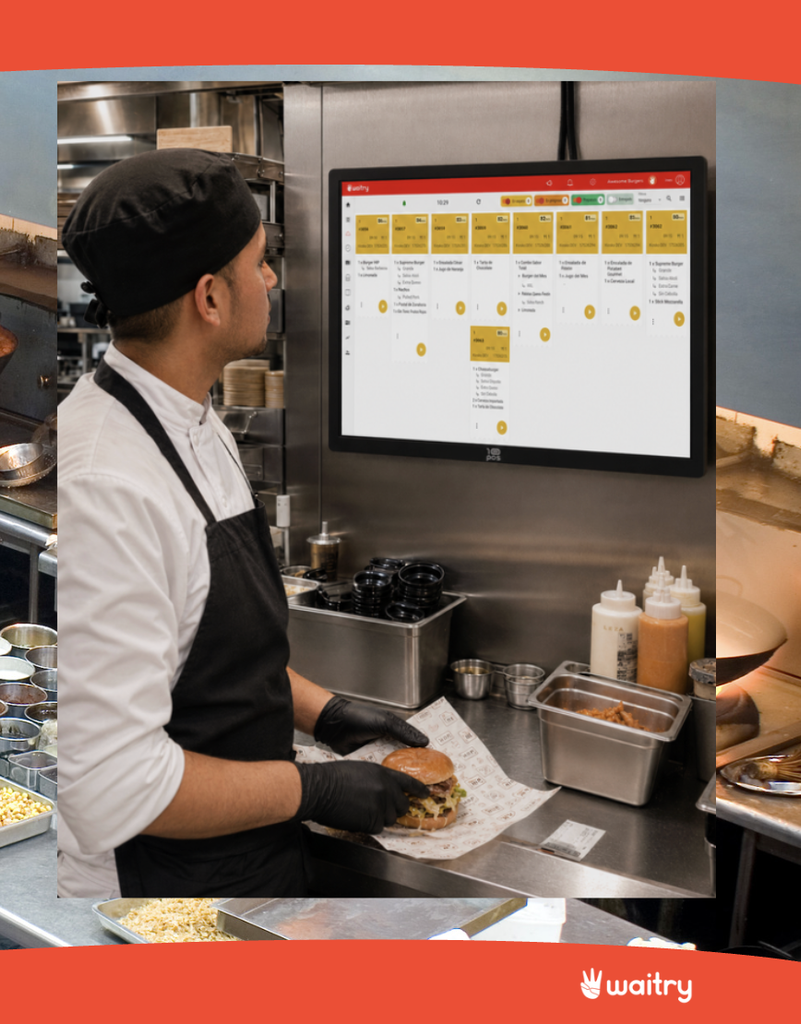
The screenshot showing several tickets in the queue, the timer for each one, and the source marked.
What you see is a grid of tickets. Each ticket represents an order, and within each one are the line items: the dishes, along with their modifications and notes.
Three things are immediately apparent, and they’re the ones that really make a difference in the service.
The clock. Each ticket shows how long it has been waiting, and the line rearranges itself automatically. The one that has been waiting for twelve minutes moves up; it doesn’t get hidden behind the ones that just joined the line.
The Origin. Each ticket indicates where it came from: a kiosk, the app, the website, a POS terminal, or a specific delivery platform.
The state. When a party finishes their meal, they signal it, and the server knows that dish is ready without having to shout to ask.
What exactly can you do with it?
Break it down by category. It’s so cold—it only looks out for itself and only does its own thing, even though the price is the same.
Group by dish. If six burgers are listed on four different orders, group them together to prepare them in a single batch.
Check off each line or the entire receipt, depending on how your kitchen operates.
Reopen a closed order when something needs to be redone or the delivery person reports that an item is missing.
Notify users when a ticket is overdue by changing its color before the customer notices.
Measure. How long each dish and each station actually take—in reality, not just how it feels. By the end of the month, you know which dish is holding up the line on Fridays, which is a very different conversation from “we’re swamped on Fridays.”
Compare locations—if you have more than one—using the same criteria for all of them.
How it integrates with what you already have
With the POS terminal. The server continues to take orders as usual, either on their terminal or tablet. The only thing that changes is where the order goes: instead of to a printer, it goes to the screen. For the front-of-house staff, there’s nothing new to learn.
Using our own channels. Orders from the QR menu, the kiosk, and the website are entered directly, without anyone having to copy them by hand. That copying step is where half the errors occur.
With delivery platforms. Here’s the big change. Today, it’s common to have one tablet per platform in a corner, each with its own audio, and someone entering those orders into the POS system. With the integration in place, they go into the same queue as the others, with the platform’s name on the receipt. The tablet corner disappears. By the way, with us, you have everything integrated.
What if my POS terminal is several years old? What matters isn’t how old it is, but whether it allows reading and writing from the outside. Many older devices work perfectly well for this.
🔌 Find out if it integrates with your POS terminal
Ágora, Revo, Hosteltáctil, ICG Hiopos, Lightspeed, Oracle Simphony, MaxiRest, Sinqro, Deliverect, and a few others.
Yes, if you want to. And it’s more common than it seems.
A KDS doesn’t force you to get rid of your printers. You can have the screen at the station and still print out paper for the delivery bag, the customer’s receipt, or for the shift that currently prefers to work with a paper copy in hand.
In fact, the transition that usually works best isn’t to cut it off abruptly. It’s to set up the screen, leave the printer on for a few weeks, and see when the machine stops looking at the paper on its own. When that day comes, you just turn it off, and that’s it.
That’s how Waitry does it
OmniKDS is Waitry’s kitchen console, and it’s a native app—not a website: it keeps working even when the network goes down and syncs back up when the connection is restored, which is no small matter in a kitchen in the middle of a busy service.
It shows the origin on every receipt, along with times per station and per dish, and orders from delivery platforms are placed in the same queue as the rest, marked with a distinctive label. It integrates with more than 100 platforms —including POS, delivery, payment, and CRM systems—so the tools you already use continue to work as usual.
The device. A KDS doesn’t require any special hardware. It works on the devices you already know how to use:
Where
What it’s good for
Things to Keep in Mind
iPad
Quick setups, small kitchens, a single batch
It needs a stable surface and should be kept away from direct steam
Android Tablet
The cheapest way to add an item
Don’t go for the cheapest one on the market: the heat takes its toll
Computer running Windows
A view of a large kitchen with several screens
The most stable option if it’s going to be on for twelve hours
Industrial Touchscreen
Lots of volume and lots of heat
It’s more expensive, but it’s designed for that environment
The screen. Three criteria—and none of them is resolution. It needs to be readable from two meters away, because no one is going to get close enough to look at it. It needs to be touch-enabled, because the user types with their hands full, and a mouse wouldn’t survive in a kitchen. And it needs plenty of brightness, because kitchens are very well-lit, and a screen with just enough brightness will look gray.
The size depends on how many tickets you want to view at once. For a pass, the bigger the better. For a game, something about the size of an iPad is usually enough.
The installation. A nearby outlet, a sturdy stand that lets you clean around it, and a connection. If you can run an Ethernet cable to the kitchen, that’s better than Wi-Fi: with so much steel around, Wi-Fi is less reliable than it seems from the office.
The team. The actual training takes ten minutes. What takes time isn’t learning the interface—it’s deciding how you want to divide up the work among the teams, and that’s something you discuss before turning anything on.
When It’s Really Worth It
A KDS is most noticeable when two factors come together: multiple channels at once and concentrated peaks. If you have dine-in, takeout, and delivery orders coming in within the same hour and a half, the paper starts to fall short just when it’s most expensive. And if you have multiple locations, this is the way to compare times across locations using the same criteria.
There is also an underlying factor that the industry has been noticing all year: 58.5% of establishments had difficulty hiring this summer, according to the Hostelería de España seasonal survey published on September 14, 2026. When staffing is tight, eliminating manual steps is no longer just an improvement—it becomes the key to successfully getting through the end of the shift.
That said, it’s worth noting: a KDS system manages orders—it doesn’t cook. Your kitchen’s capacity remains the same; the only difference is that nothing gets lost along the way.
Frequent questions
What does the acronym KDS stand for?
Kitchen Display System. In Spanish, “panel de cocina” or “pantalla de cocina.”
Where is a KDS installed?
In the serving line, the counter where dishes are brought from the kitchen to the dining room. In large kitchens, a partition is added for each section.
How do I integrate my KDS with Ágora?
You connect it from the dashboard, and orders are sent directly to the kitchen display. Here’s a step-by-step guide on how to integrate Ágora with Waitry.
Yes, with integration enabled. They join the same line as the in-theater customers, and their ticket shows which platform they’re coming from, so the tablet section disappears.
Does KDS still print on paper?
You can, if you want. Many businesses keep the printer on for delivery orders or during the first few weeks, and turn it off once the staff stops using it.
Can I use an iPad as a KDS?
Yes. It could also be an Android tablet, a Windows computer, or an industrial touchscreen. The important thing is that it’s readable from two meters away, has a touchscreen, and can withstand the kitchen environment.
What happens if the internet goes down?
It depends on the system. Waitry’s app is a native app designed to continue operating without an internet connection and sync when the connection is restored.
How many screens do I need?
Always one in the queue. From there, one for each game running in parallel.
Where to Start
If you want to see how it works with your menu and your kitchen, we’ll set it up with you. And if you’d rather tinker with it on your own before talking to anyone, that’s fine, too.
Usamos cookies 🍪 propias y de terceros con fines analíticos para brindarte un servicio cada vez mejor. Persionando "Aceptar" das tu consentimiento a todas las cookies.
This website uses cookies to improve your experience while you navigate through the website. Out of these, the cookies that are categorized as necessary are stored on your browser as they are essential for the working of basic functionalities of the website. We also use third-party cookies that help us analyze and understand how you use this website. These cookies will be stored in your browser only with your consent. You also have the option to opt-out of these cookies. But opting out of some of these cookies may affect your browsing experience.
Necessary cookies are absolutely essential for the website to function properly. These cookies ensure basic functionalities and security features of the website, anonymously.
Cookie
Duration
Description
cookielawinfo-checbox-analytics
This cookie is set by GDPR Cookie Consent plugin. The cookie is used to store the user consent for the cookies in the category "Analytics".
cookielawinfo-checbox-functional
The cookie is set by GDPR cookie consent to record the user consent for the cookies in the category "Functional".
cookielawinfo-checbox-others
This cookie is set by GDPR Cookie Consent plugin. The cookie is used to store the user consent for the cookies in the category "Other.
cookielawinfo-checkbox-necessary
This cookie is set by GDPR Cookie Consent plugin. The cookies is used to store the user consent for the cookies in the category "Necessary".
cookielawinfo-checkbox-performance
This cookie is set by GDPR Cookie Consent plugin. The cookie is used to store the user consent for the cookies in the category "Performance".
viewed_cookie_policy
The cookie is set by the GDPR Cookie Consent plugin and is used to store whether or not user has consented to the use of cookies. It does not store any personal data.